


TD Bank (US)
4.233.83K Reviews
App Specs
- Version
- 26.10.1.71
- Updated On
- License
- Free
- Downloads
- 5,000,000+
- Developer
- TD Bank, N.A.
- Categories
- Finance
- Platform
- Android, iOS
Screenshots

 Analysis by AppCompare
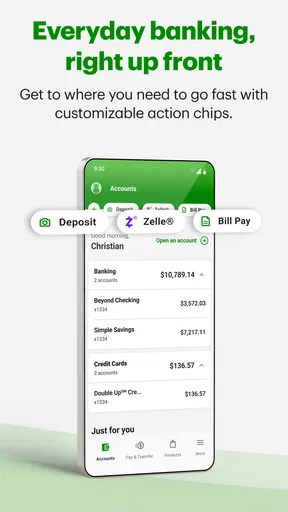
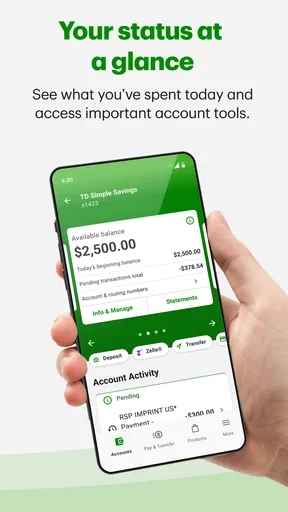
If you bank with TD Bank in the United States, the TD Bank (US) app is designed to put routine money tasks in one place rather than making you rely on a desktop browser or visit a branch for every small job. I found it most useful as a practical everyday banking tool: checking whether a payment cleared, reviewing recent activity, moving money when needed, and keeping an eye on an account while I am away from my computer.
It is a free finance app from TD Bank, N.A., available for Everyone. The app has been around since August 14, 2010, and its current version is 26.10.1.71 for devices running iOS or Android 12 and later. With more than five million installs, it is clearly aimed at regular TD customers rather than people looking for a general-purpose budgeting service.
My overall impression is straightforward: this is a useful companion for existing TD Bank customers, especially if you want quick access to everyday account information. It is less compelling if you do not already use TD Bank, or if your main goal is detailed spending analysis across several banks. The important distinction is that this is a bank-access app, not a replacement for a complete financial-planning system.
What to expect before you begin
The first thing to understand is the app’s role. It brings your TD Bank relationship onto your phone; it does not turn TD Bank into a universal account hub. That makes the experience more focused than many independent finance apps, but it also means the value depends heavily on whether your accounts are already with TD.
When I opened it, I approached it as a tool for short sessions. I wanted to answer questions such as “Did that transaction post?”, “How much is available?”, or “Can I handle this transfer now?” That mindset fits the app well. It is built around the moments when you need current account access, not around sitting down for a long financial review.
The store rating sits at about 4.2 from roughly 90,000 ratings, with around 34,000 written reviews. Those figures suggest a mature app with broad use, but they should not be read as a promise that every banking task will feel equally smooth on every phone. Banking apps are especially sensitive to sign-in flows, device changes, network conditions, and account-specific access.
I also appreciate that the app is free to download. That removes one barrier for a TD customer deciding whether to try mobile banking. The more meaningful question is not the download cost, but whether the app saves enough time compared with the TD website, a phone call, or a branch visit. For everyday checks and simple actions, it generally does.
Worth Reading Before You Choose

EA SPORTS FC Mobile 26 Is a Bigger Football Game, but It Takes Time

Flipboard Shows What News Apps Must Do Beyond the Feed

Switching to Android Auto Means Rethinking Your Driving Routine

Google Calendar Makes a Crowded Week Easier to Manage

Ludo King Makes the Most of the Minutes Between Plans

Baby Panda World Brings Quick Play to Modern Phones, but Its Game Library Feels Busy
Who will get the most from it
I would recommend it first to someone who has recently opened a TD account, someone who wants to stop checking balances through a browser, or someone who needs a convenient way to monitor activity during the day. It is particularly sensible for people who make frequent small checks rather than only reviewing their finances once a month.
A first-time user should also expect security steps to be part of the experience. That is not a flaw by itself; a banking app should be more careful than a weather or shopping app. Still, it means the quickest route to success is to have your TD login details ready, use a stable connection, and avoid beginning setup in a rush just before an important payment.
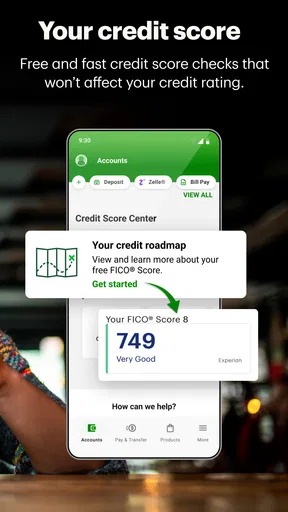
I would skip it if you are searching for a tool that combines credit cards, investments, loans, and accounts from unrelated institutions into one neutral dashboard. I would also look elsewhere if your priority is automatic categorization, long-term visual reports, or a detailed household budget. Those are different jobs, and an independent finance app may be better suited to them.
Setting up the app without unnecessary friction
After installation, my advice is to treat setup as a short security and orientation process rather than immediately trying to explore every screen. Open the app when you have a few uninterrupted minutes. Sign in with your existing TD Bank credentials, follow the prompts shown on your device, and take a moment to understand where the main account and activity views are located.
For a first-time TD mobile user, the most useful early goal is not changing every preference. It is reaching your account information and recognizing the difference between a current balance, recent activity, and an action that is still processing. That distinction prevents a common mistake: assuming that every amount visible on screen represents money that can be spent immediately.
I recommend checking the account name and the last few transactions as soon as access is available. This gives you a simple confirmation that you are looking at the expected account and that the activity makes sense. It also creates a reference point for later. If you notice something unfamiliar, you can investigate while the transaction is still easy to identify instead of trying to reconstruct the situation weeks later.
Another useful habit is to set up your first session at home rather than while standing in a checkout line. A public connection, a low battery, or a rushed sign-in can turn a simple task into an annoying one. Once the app is working on your phone, later checks are much less demanding.
How I approached the first successful action
The best first success is a low-risk task that proves the app is useful without creating a complicated financial consequence. I started by reviewing recent account activity and confirming that the displayed information matched what I expected. This may sound basic, but it is the foundation for everything else: if you can quickly verify activity, the app already has practical value.
From there, a new user can choose the everyday action that matches their needs, such as reviewing available funds or handling a routine transfer. I would not make a large or time-sensitive payment the first experiment. Use an ordinary task, read each confirmation screen carefully, and keep the final result visible long enough to understand what changed.
One workflow I found especially sensible is the “check, act, check again” routine. First, review the relevant account and available amount. Next, complete the intended action. Finally, return to the account activity or confirmation area and verify the result. This extra pause is valuable because mobile banking encourages quick taps, while financial actions deserve a deliberate final check.
Imagine receiving a message that your rent or utility payment is due while you are away from your laptop. I would open the app, confirm that the necessary funds are available, review the destination and amount before submitting anything, and then verify the confirmation afterward. The advantage is not just speed. It is being able to make the decision with current account information instead of relying on memory.
Small habits that make the app more useful
One non-obvious benefit of frequent short check-ins is that they help you notice patterns in your own account activity. You do not need a sophisticated budget screen to catch a forgotten subscription, a duplicate-looking charge, or a transaction that posted later than expected. The app works well as a monitoring point, provided you actually review the activity rather than only looking at the headline balance.
A second useful habit is to separate “available now” from “money expected later.” If you are waiting for a deposit or checking whether a card purchase has settled, avoid making decisions from a single number without looking at the surrounding activity. The app can show you current banking information, but your own interpretation still matters. A balance is not automatically the same as a safe spending plan.
Third, use the mobile format for convenience, not for multitasking. When I handle a transfer or another meaningful action, I avoid switching rapidly between apps or tapping through screens from memory. I read the account, amount, and recipient details each time. That may add a few seconds, but it reduces the chance of acting on the wrong account or overlooking a changed status.
Where first-time users may become confused
The most likely confusion is assuming that a banking app behaves like a static balance display. It does not. Account activity can change as transactions move through the banking process, and the amount you see may need to be understood alongside pending or recent activity. If something looks different from your expectation, inspect the transaction details before concluding that the app is wrong.
Another point of friction is the difference between viewing information and completing an action. Seeing an account does not mean that every action is available from every screen. I found it easier to decide what I wanted to do first, then navigate deliberately to that function, rather than opening menus at random. This is especially helpful for a new customer who has not yet built a mental map of the app.
Sign-in can also feel slower than users expect from ordinary social or shopping apps. In finance, extra verification and session protection are part of the trade-off. If the app asks you to confirm your identity again, I would treat that as an inconvenience to plan around rather than a reason to repeatedly retry or rush through the prompts.
There is also a practical limitation in relying on a phone for banking. A small screen makes it easier to miss a line of information, particularly when you are reviewing several transactions or confirming details. For a complicated financial review, I prefer a larger screen or a direct conversation with TD Bank. The app is strongest when the task is clear and contained.
When the website or another app is the better choice
The TD Bank website may be more comfortable when you need a wider view of multiple accounts or want to spend time reviewing information. A branch or phone representative may be more appropriate when the issue involves an unusual account problem, a disputed transaction, or a question that requires context rather than a simple self-service action.
An independent budgeting app can be a better companion for someone who uses several financial institutions. It may offer a broader picture of spending, while the TD app gives you the direct relationship with TD Bank. I would not choose one expecting it to replace the other. They solve different problems, and combining them can be more useful than forcing a single app to do everything.
This comparison also explains why I would not judge the TD app solely by how many budgeting tools it has. Its strength is direct access to TD banking information and routine account management. If that is what you need, a focused app can be preferable to a crowded dashboard filled with features you rarely use.
What to do after the first successful session
Once you have signed in and completed a simple check or routine action, the next step is to make the app part of a sensible financial routine. I would use it before important payments, after unusual purchases, and whenever I need to confirm whether an expected transaction has appeared. That gives the app a clear purpose instead of turning it into another icon that is installed and forgotten.
It is also worth deciding which tasks belong on the phone and which deserve a slower review. Use the app for quick awareness and straightforward banking actions. Reserve larger decisions, complicated account questions, and detailed financial planning for a setting where you can concentrate. This division keeps the convenience of mobile banking without pretending that every financial problem should be solved with a few taps.
If you are helping a family member get started, I would show them one complete workflow rather than giving a general tour. For example: open the app, identify the correct account, review recent activity, perform one familiar action, and confirm the result. That sequence teaches more than pointing out every menu, and it gives a new user a repeatable method for future sessions.
Keep the app updated through the normal app-store process so you are using the current release available for your device. The listed current version is 26.10.1.71, and the minimum operating-system requirement is Android 12 or later. If your phone is older than that requirement, checking compatibility before relying on the app for urgent banking is a sensible step.
My final view is positive but deliberately practical. TD Bank (US) is best when you already bank with TD and want dependable, convenient access to everyday account information from your phone. It does not need to be a full budgeting suite to succeed at that job. The free price and broad adoption make it an easy app to try for eligible TD customers, while the Everyone age rating keeps its presentation accessible.
I would recommend starting with account activity, then moving to one ordinary banking action, and finishing by verifying the result. That path gives a first-time user a meaningful success without unnecessary risk. If you want cross-bank planning or deep spending analysis, choose a complementary finance tool instead. For direct TD banking on a compatible phone, though, this app is a sensible and useful starting point.
Pros
- Mobile check deposit is convenient for everyday banking.
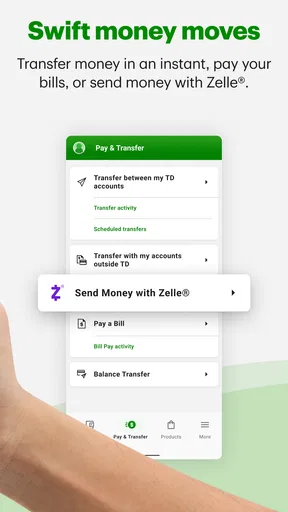
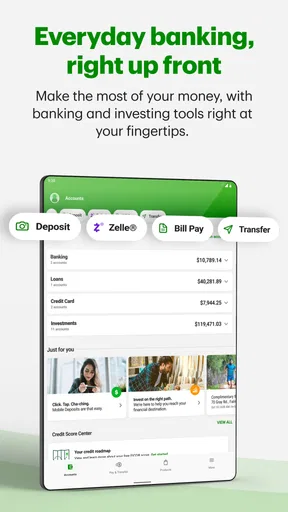
- Bill pay and transfers are easy to manage in one place.
- Customizable alerts help monitor balances and transactions.
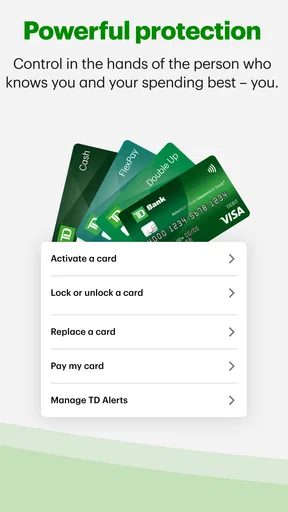
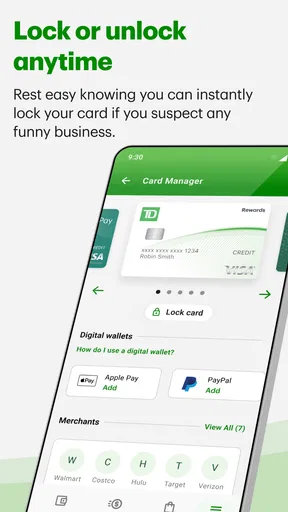
- Card controls can improve security when a debit card is misplaced.
- The app provides access to TD Bank’s U.S. customer support channels.
Cons
- Some features may require an eligible TD account or additional enrollment.
- Mobile check deposits can be subject to limits and processing delays.
- The app may feel less useful for customers outside TD’s branch network.
- Occasional updates may change menu locations or the user interface.
- Certain services still require contacting support or visiting a branch.
FAQs for TD Bank (US)
What is TD Bank, and what can I do with its mobile app?
TD Bank is a U.S. banking app for customers with eligible TD personal or business accounts. After signing in, you can generally check balances, review transactions, transfer money between accounts, pay bills, deposit checks using your phone’s camera, locate branches and ATMs, and manage certain account settings. Available features may vary depending on your account type, location, device, and TD’s current service policies.
Is the TD Bank mobile app safe to use for online banking?
The TD Bank app is designed with security features intended to protect your banking information, including secure sign-in, encryption, alerts, and optional biometric authentication on compatible devices. However, no banking app eliminates every risk. Download it only from the official Google Play Store or Apple App Store, keep your operating system updated, avoid public Wi-Fi for sensitive activity, and never share verification codes or passwords with anyone.
Can I deposit checks through the TD Bank app?
Eligible customers may be able to deposit checks using TD Bank’s mobile check deposit feature. You typically photograph the front and endorsed back of the check, enter the amount, select the account, and submit the deposit for review. Requirements, limits, fees, and fund availability can vary. Keep the original check safely until the deposit is fully processed, and follow the app’s instructions regarding when it may be destroyed.
Does the TD Bank app charge fees for transfers, bill payments, or mobile deposits?
The app itself may be available without a separate download charge, but individual banking services can still involve fees or limits based on your account agreement. Standard transfers between eligible TD accounts and bill payments may work differently from external transfers, wire services, or expedited payments. Mobile check deposits may have eligibility rules rather than a direct fee. Review the fee schedule and confirmation screen before completing a transaction.
What should I do if I cannot sign in or notice suspicious activity in my TD Bank account?
If sign-in fails, verify that your credentials are correct, update the app, check your internet connection, and use TD’s official password or username recovery options rather than links from unexpected messages. If you see an unfamiliar transaction, receive a suspicious alert, or believe your credentials were exposed, contact TD Bank promptly through the official app, website, or phone number on your card. Avoid discussing account details with unverified callers.


